


Support · For Instructors & Guides
Running your business on MEETR
Everything you need to set up your profile, publish what you offer, handle requests, and get paid. MEETR never takes a commission on your rate.
On this page
Plans at a glance
Every plan gets a public profile clients can find. Paid plans renew once a year, and your renewal date shows on Plan and billing.
| Feature | Free $0 |
Pro Plus $49/yr |
Pro Platinum $99/yr |
|---|---|---|---|
| Public profile, photo gallery, tagline | ✓ | ✓ | ✓ |
| Location, website and social links | ✓ | ✓ | ✓ |
| Map display on your profile | ✓ | ✓ | ✓ |
| Basic certifications listed | ✓ | ✓ | ✓ |
| Profile video and FAQ | — | ✓ | ✓ |
| Searchable specialties | — | ✓ | ✓ |
| Private inquiry form (hide your phone and email) | — | ✓ | ✓ |
| Verified certification badge | — | ✓ | ✓ |
| Announcements and deals | — | ✓ | ✓ |
| No Google or competitor ads on your profile | — | ✓ | ✓ |
| Client messaging and scheduling (confirm, propose a new time, cancel) | — | ✓ | ✓ |
| Client Book: client list, lesson notes, reminders | — | ✓ | ✓ |
| Eligible for The Dispatch and Field Notes | — | ✓ | ✓ |
| Online booking payments through Stripe | — | — | ✓ |
| Your own payment and cancellation policy | — | — | ✓ |
| Tips paid to you in full | — | — | ✓ |
| Your own Stripe dashboard for payouts and tax forms | — | — | ✓ |
Create your profile
- Create your account
Select Create Guide Profile in the menu. Your guide login is separate from a client account, so use the email you want clients and MEETR to reach you on. - Pick your discipline
Ski, snowboard, backcountry, Nordic, heli, climbing and mountaineering, fly fishing, whitewater and more. One profile can cover several disciplines. - Add the basics
Business name, a one-line tagline, where you work, and your website. Lead with what makes you findable: your specialty and your mountain. - Add real photos
Photos of you working beat stock images every time. The first photo is your cover. - List your certifications
PSIA, CSIA, AASI, AMGA, IFMGA, avalanche level, WFR and so on. On Pro Plus and Pro Platinum, confirmed certifications carry a verified badge. - Choose your plan
Start on Free and upgrade whenever you like. Your content carries over. - Submit for review
We review new profiles before they go live so MEETR stays a marketplace of real, working pros. You get an email when you are published.
If you pick a paid plan before paying. Your profile is published on Free and everything you entered is saved. Pay from Plan and billing and your paid features switch on right away.
Your guide home
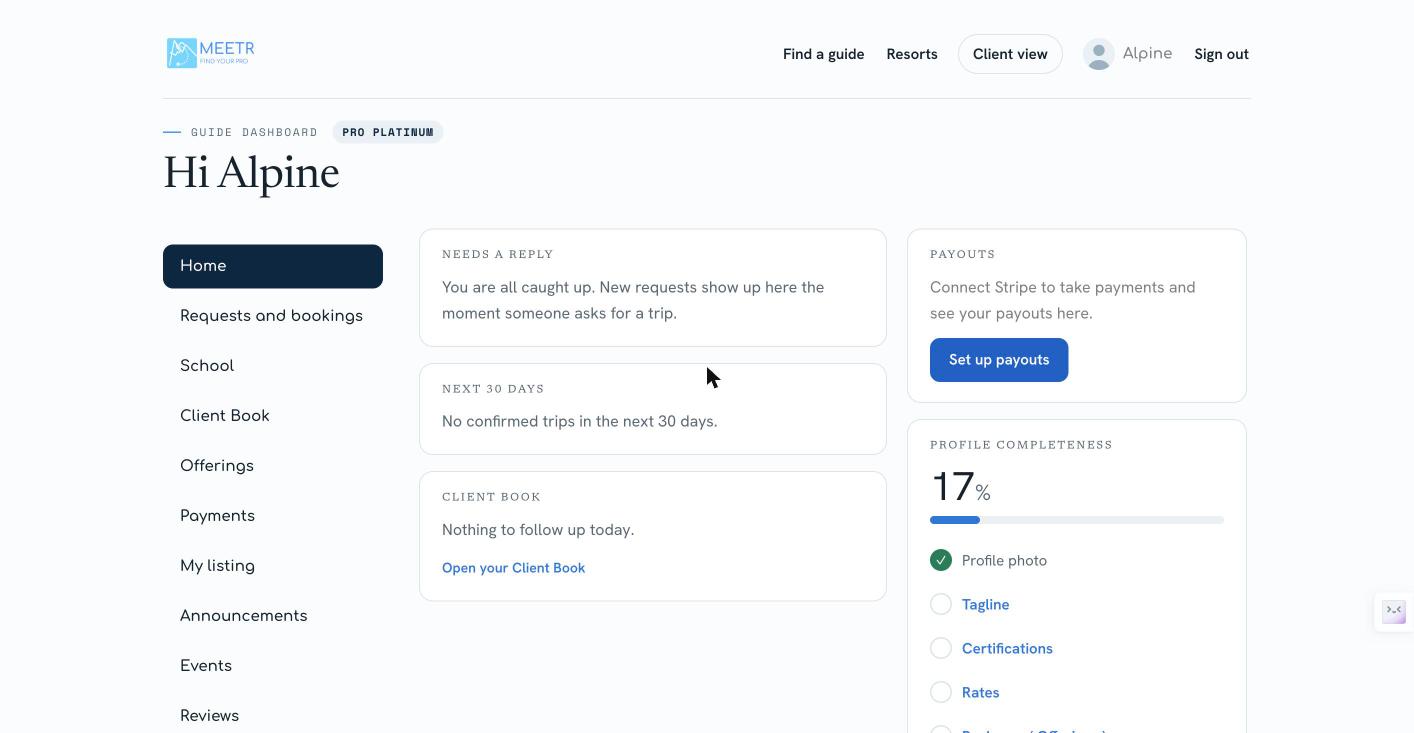
Signing in takes you to your guide home. It shows what needs you today:
- Needs a reply: requests waiting on you, with Confirm and Propose new time on the card.
- Next 30 days: your confirmed trips.
- Client Book: clients to follow up with today.
- Payouts: connect Stripe, then see your payouts here.
- Profile completeness: a checklist with a link to each missing piece.
- Your plan: your plan and a link to Plan and billing.
Offerings and prices
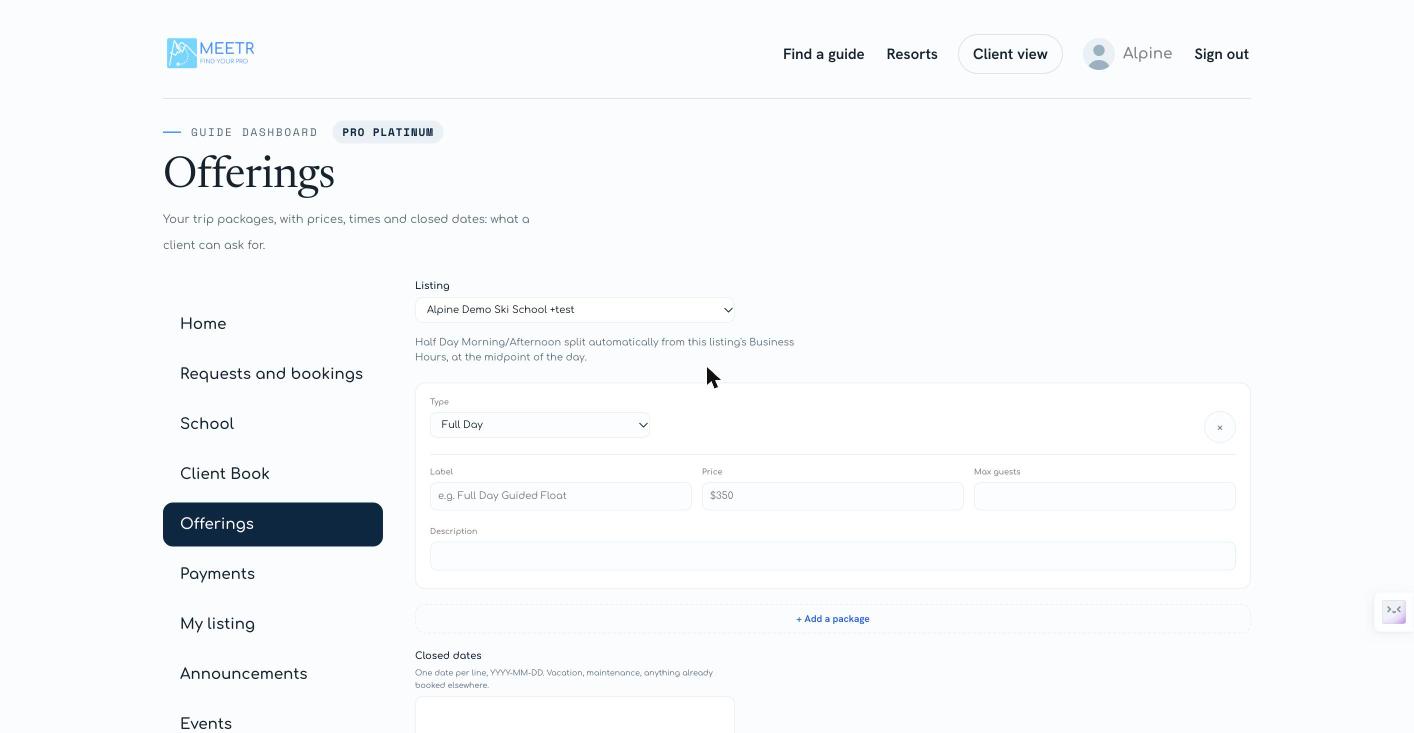
Offerings are the trips clients can request from your profile: what it is, how long, the price, and how many people. They show on your profile under Trips & availability.
- Open Offerings
From your dashboard, open Offerings and choose the listing if you have more than one. - Add a trip
Pick a type: Full Day, Half Day Morning, Half Day Afternoon, Multi-Day or Custom. Give it a clear label (“Full Day Private Lesson, Big Sky”), a price, a guest limit and a short description of what is included. - Add the rest
Use + Add a package for each trip you run. Most pros list three to five. - Save
Select Save Trip Packages. Your trips appear on your profile right away.
Block dates you can’t work
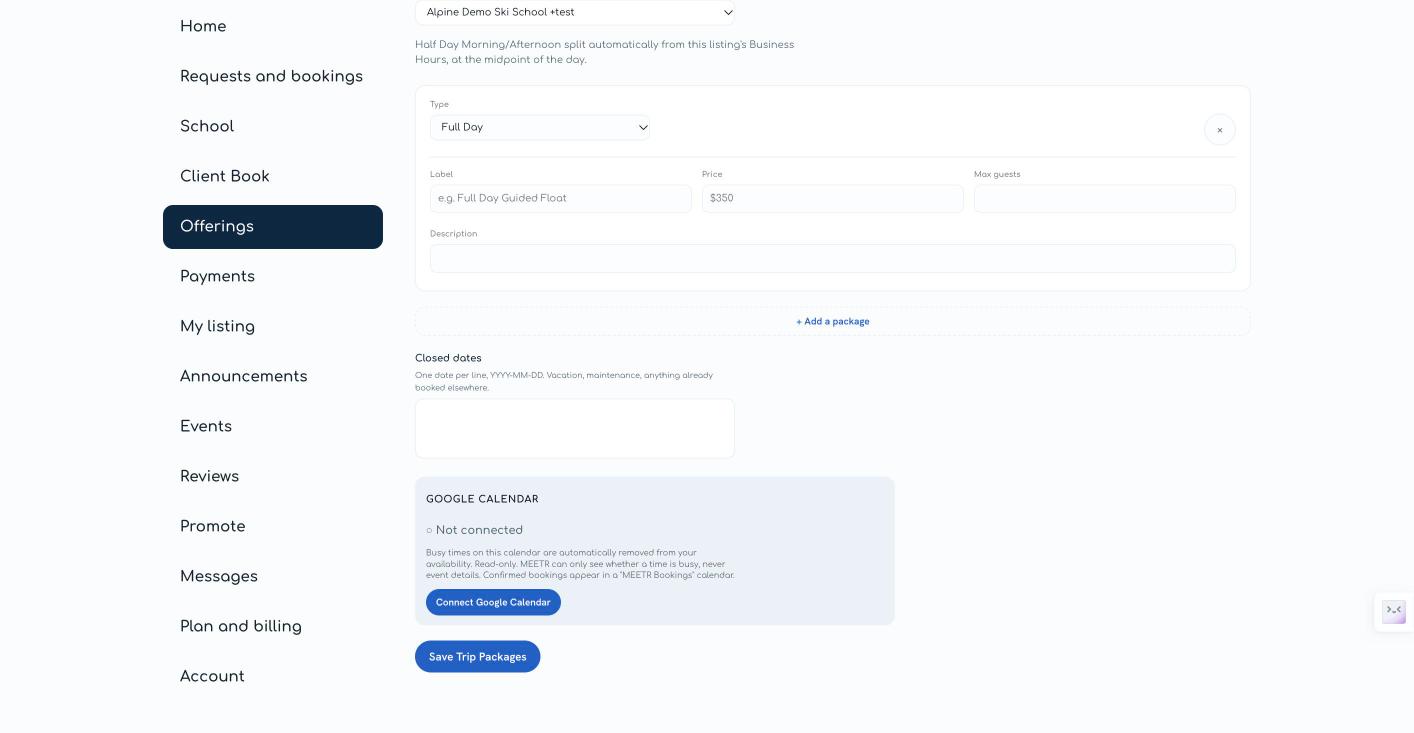
In Offerings, list any date you are unavailable under Closed dates, one per line as YYYY-MM-DD (for example 2026-12-24). Vacation, maintenance, anything already booked elsewhere. Clients can’t request those dates.
Google Calendar
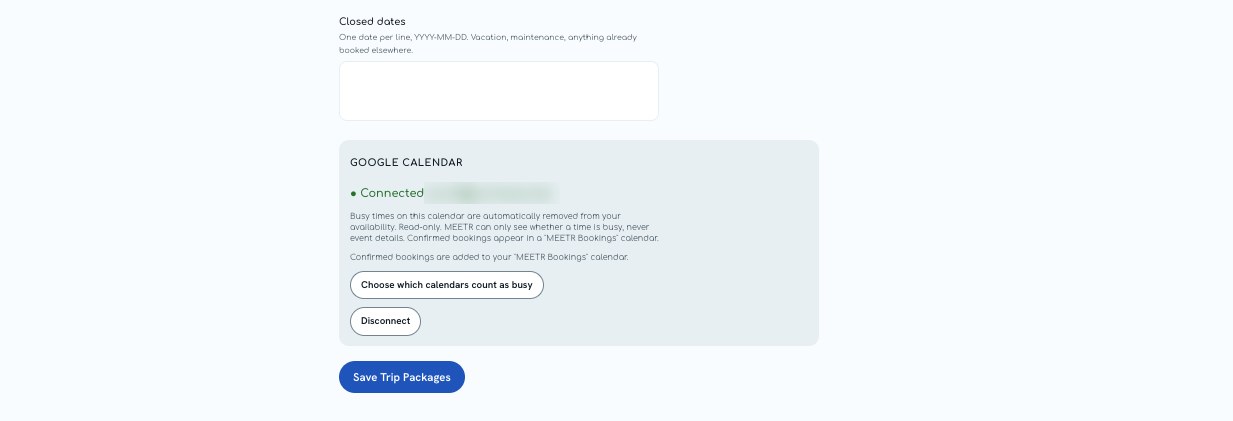
When Google Calendar is connected, busy times on your calendar come off your MEETR availability automatically, so a ski school shift or a private booked elsewhere never gets double-booked. MEETR can only see whether a time is busy, never your event titles, guests or notes. It is read-only.
- Open Offerings
Find the Google Calendar box. It shows “Not connected” until you link an account. - Connect
Select Connect Google Calendar and sign in with the Google account that holds your work calendar. - Approve read-only access
Approve the free/busy permission. - Check it
The box should now show your calendar as connected. Confirmed bookings appear in a “MEETR Bookings” calendar on your Google account.
Handling trip requests
When a client requests one of your trips, you get an email and it appears on your guide home and under Requests and bookings. Each request shows the trip, date, group size, contact details, the client’s note, and their trip profile: activity, ability, goals and who is coming with ages.
| Status | What it means | Your next step |
|---|---|---|
| Requested | The client has asked for this trip and date. | Confirm, propose a new time, or cancel. |
| Confirmed | You have said yes. The client has not paid yet. | Nothing. The client pays from their email or dashboard. |
| Paid | The client has paid in full (Pro Platinum). | Show up and have a great day. |
| Completed | The trip date has passed. | Add a lesson note in your Client Book. |
| Cancelled | Cancelled by you or the client, declined, or refunded. | Nothing. |
- Confirm
Select Confirm. On Pro Platinum the client gets a secure payment link by email. On other plans the client gets a confirmation and you settle payment directly. - Propose a new time
If the date doesn’t work, select Propose new time and pick an alternative. The client can accept it. - Cancel
Select Cancel booking and add a short reason. If the client already paid, the refund follows your cancellation policy.
Getting paid (Pro Platinum)
Pro Platinum takes card payments through Stripe. Money goes from the client straight to you, and you see every payment, refund and payout in your own Stripe dashboard. MEETR never holds your money and never sees your bank details.
What things cost
MEETR takes no commission on your rate. The client pays a 1.5% MEETR service fee on top of your price. Stripe’s standard card processing fee comes out of your payment, the same as any card reader.
| Example: $400 full-day lesson | Amount |
|---|---|
| Your price | $400.00 |
| Client pays (your price + 1.5% service fee) | $406.00 |
| Stripe processing fee (about 2.9% + 30¢) | −$12.07 |
| You receive | $387.93 |
Set up payouts, step by step
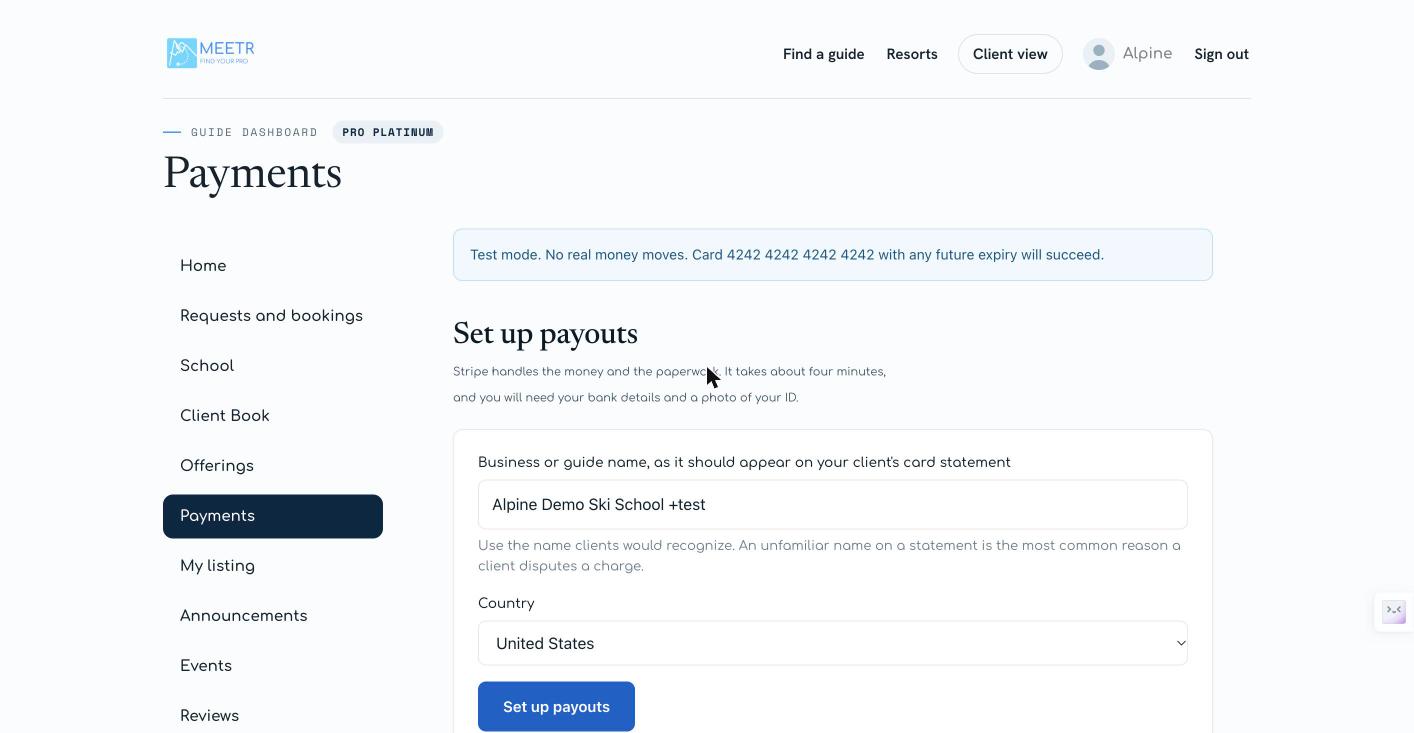
Set aside about four minutes. You will need your bank details and a photo of your ID.
- Open Payments
From your dashboard, select Payments. - Enter your name
Type the business or guide name as it should appear on your client’s card statement. Use the name clients would recognise: an unfamiliar name is the most common reason a client disputes a charge. - Choose your country
Pick your country, then select Set up payouts. - Finish with Stripe
Stripe opens in a secure sign-up. Enter your details and your bank account for payouts, and verify your identity if Stripe asks. - Return to MEETR
When Stripe sends you back, your Payments page shows your payout status.
When the money arrives
Stripe pays out to your bank on its standard schedule. Your very first payout can take about a week while Stripe verifies the new account. Your exact schedule is in your Stripe dashboard under Payouts.
Taxes
Stripe issues tax forms (such as the 1099-K in the US) from your Stripe dashboard when you meet the reporting threshold. MEETR does not withhold tax. Talk to your accountant about what applies to you.
Stripe setup problems
- My Payments page says “Restricted” or “More information needed.” Stripe needs one more thing, usually an ID photo, a full SSN, or a corrected address. Use the link on the Payments page to go back to Stripe and finish. Payouts resume once Stripe is satisfied.
- I already have a Stripe account from another business. You can sign in with it during setup and MEETR payments will land there. If you want MEETR income kept separate, create a new account with a different email.
- Payouts are paused. Almost always a bank detail problem. Check your bank account in the Stripe dashboard under Settings, then Bank accounts.
- What name shows on my client’s card statement? The business or guide name you enter on the Payments page.
Cancellations and refunds
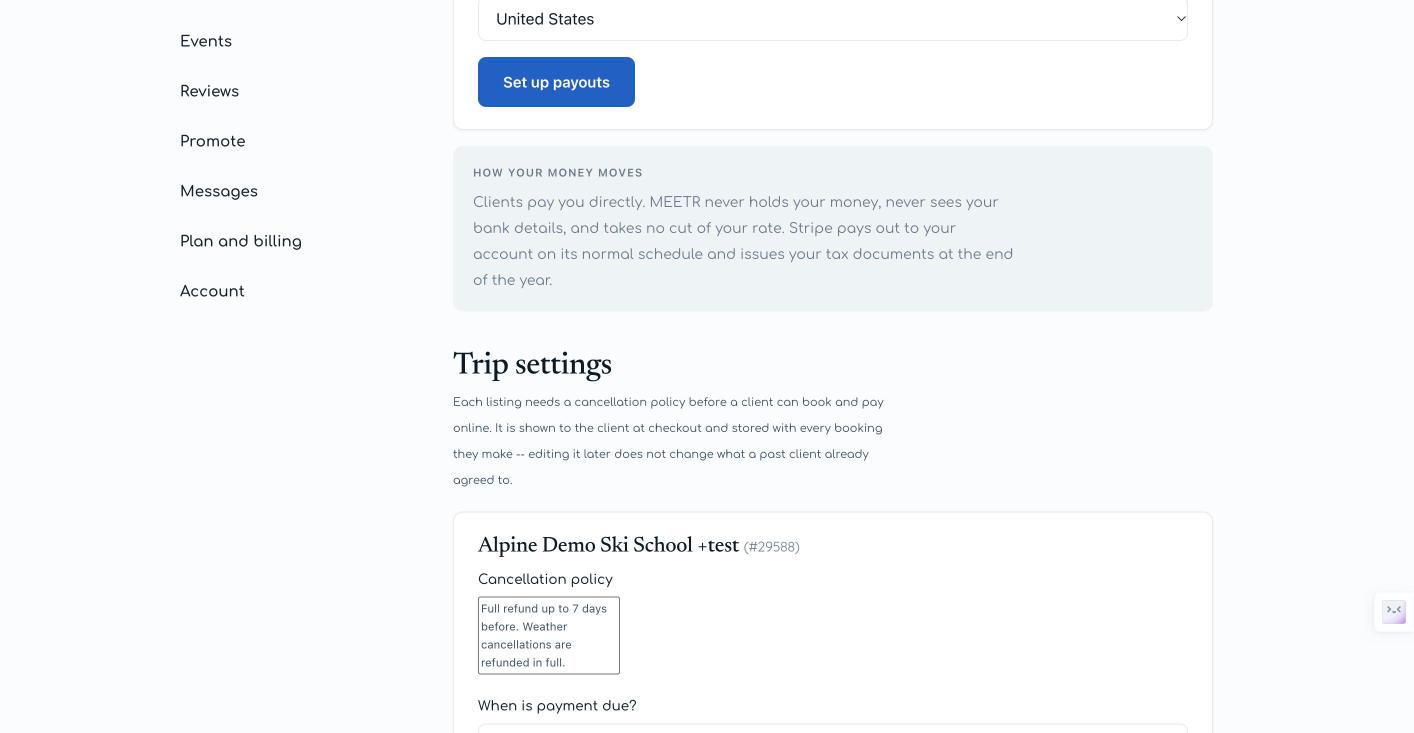
On Pro Platinum you set your own cancellation policy under Payments, in Trip settings. Each listing needs a cancellation policy before a client can book and pay online.
- Cancellation policy: write it in your own words, for example “Full refund up to 7 days before. Weather cancellations are refunded in full.” It is shown to the client at checkout and stored with every booking.
- When is payment due? Choose Full amount charged at booking or Booking request only, no payment yet.
Editing your policy later does not change what a past client already agreed to. When you cancel a paid trip yourself, the client is refunded in full, including the 1.5% service fee.
Your school (Founding School)
If you run a ski or snowboard school, MEETR gives your school its own page and lets you manage your instructors from one place. Find it in the menu under School.
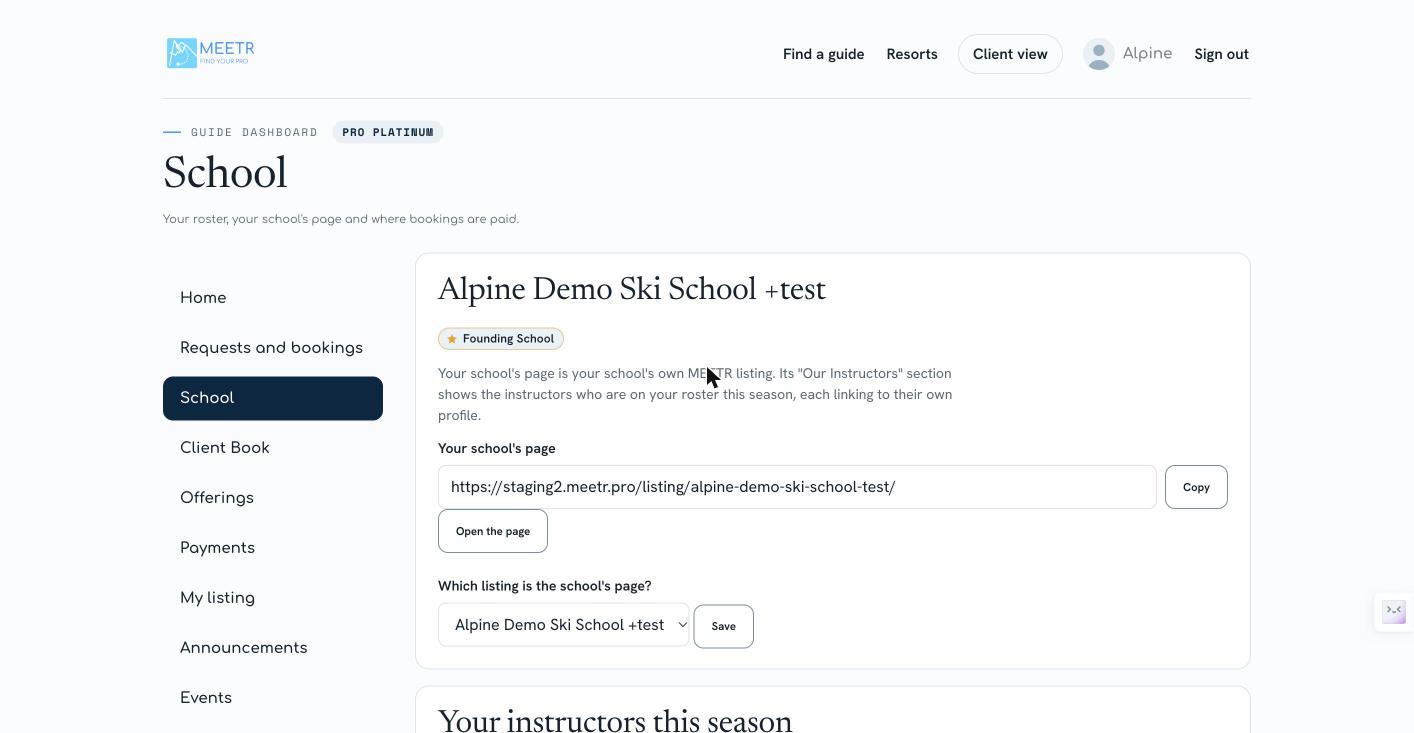
- Your school’s page. Your school has its own MEETR listing. Its “Our Instructors” section shows the instructors on your roster this season, each linking to their own profile.
- Your instructors this season. Add or remove instructors on your roster. Each appears on your school’s page.
- Invite instructors. Send your instructor link to the people who teach with you. They sign in, pick their own profile and join. Nobody at the school can change another person’s profile.
- Start a profile for an instructor. For an instructor with no MEETR profile yet, start one with their name and what they teach. It stays private until they claim it with their own MEETR account, using a link you send them.
- Managers. A manager can add and remove instructors and see their requests. They cannot delete the school or change where payments go.
- Central booking email. Every trip request and message sent to one of your instructors can also go to up to five booking-team addresses, so your reservations team sees it at the same moment. The guest does not see these addresses.
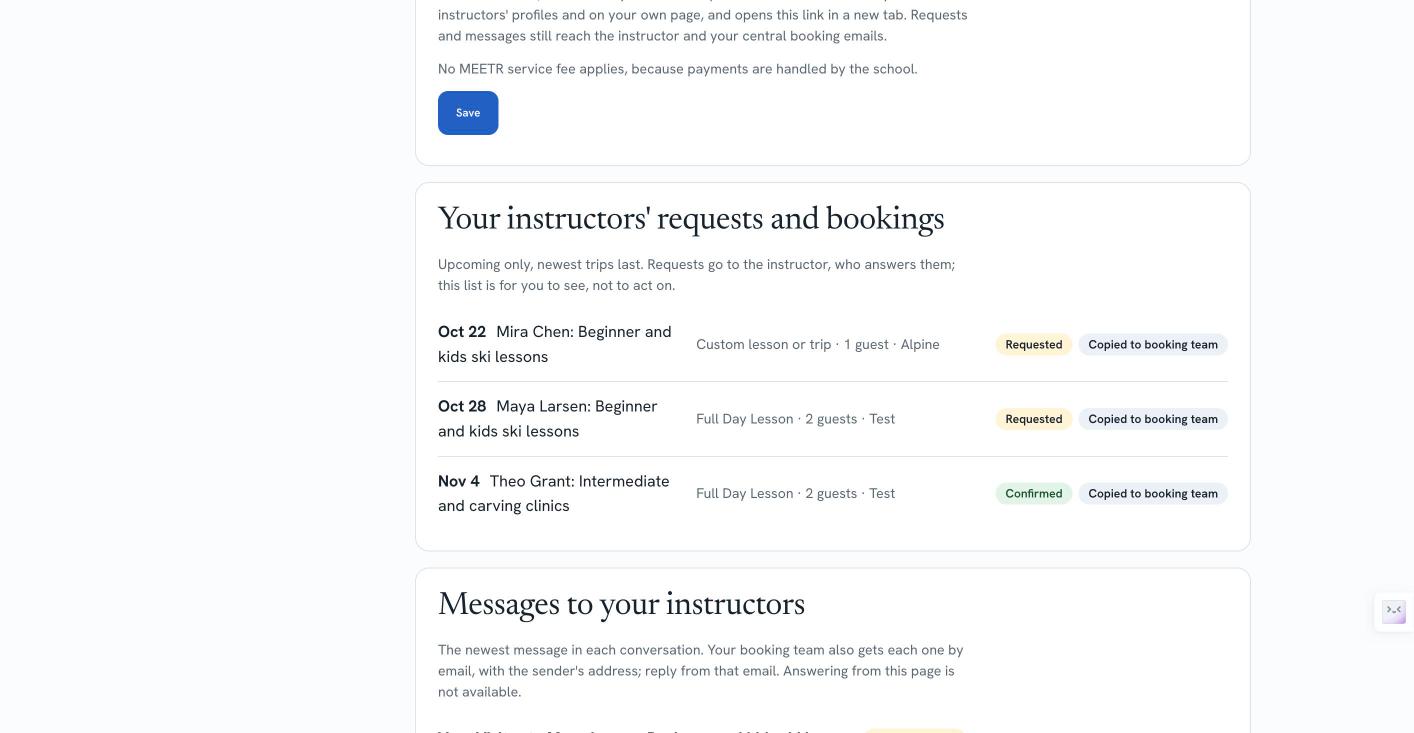
- Where bookings are paid. Choose each instructor’s own Stripe account, the school’s Stripe account, or the school’s own booking system. If you use your own booking system, add its booking link: “Book with” your school then replaces MEETR checkout on your instructors’ profiles and opens your link in a new tab. No MEETR service fee applies, because payments are handled by the school.
Under Your instructors’ requests and bookings you can see every upcoming request for your instructors and whether it was copied to your booking team. Requests go to the instructor, who answers them.
Tips
Clients can tip you in full, with no MEETR fee, from the leave-a-tip page or the thank-you email after their trip.
Client Book
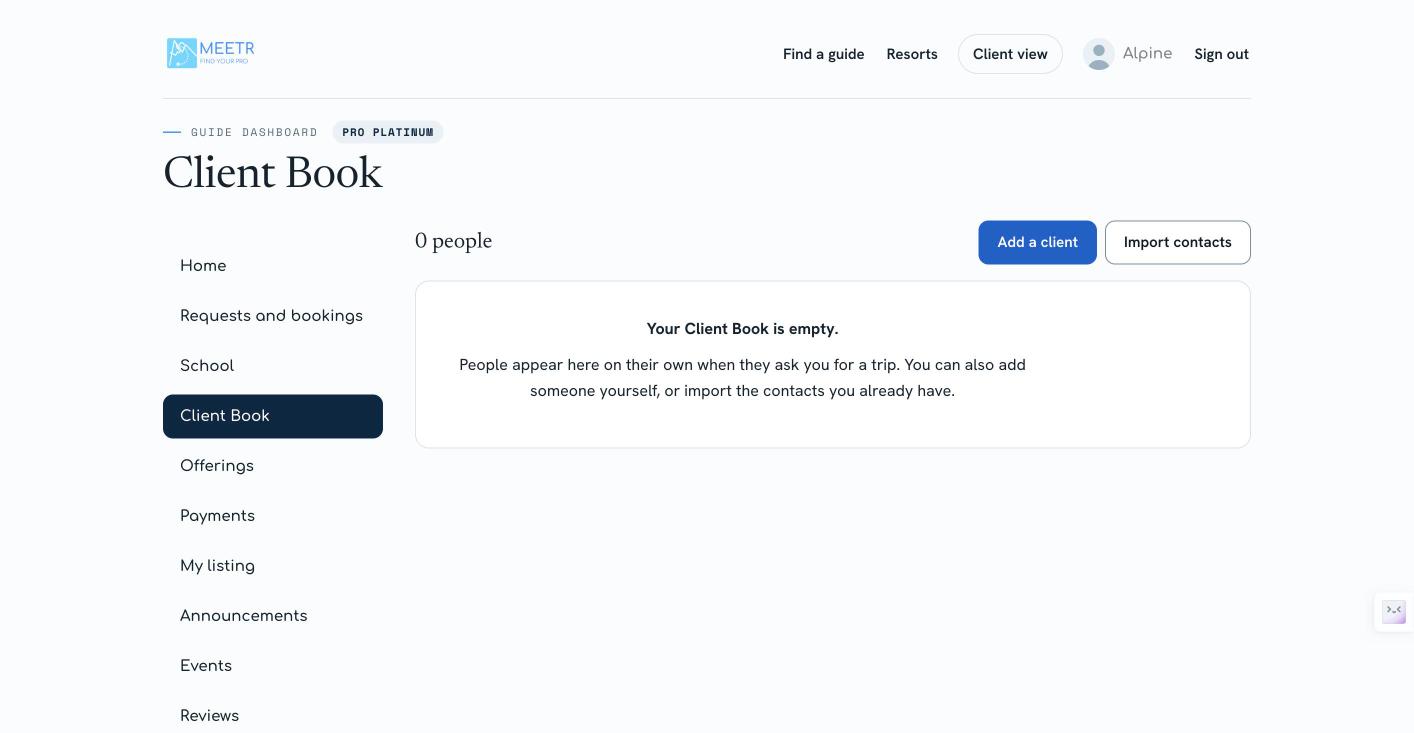
Your Client Book (Pro Plus and Pro Platinum) is your list of everyone who has requested a trip with you. People appear on their own when they ask you for a trip.
- Add a client yourself, or import contacts you already have (CSV or vCard from Google Contacts or iPhone). Confirm they have agreed to hear from you.
- Lesson notes: after each trip, note what you worked on and what to work on next.
- Reminders: “The Hendersons book Presidents’ Day, reach out in December.” Reminders show on your guide home when they are due.
Events and announcements
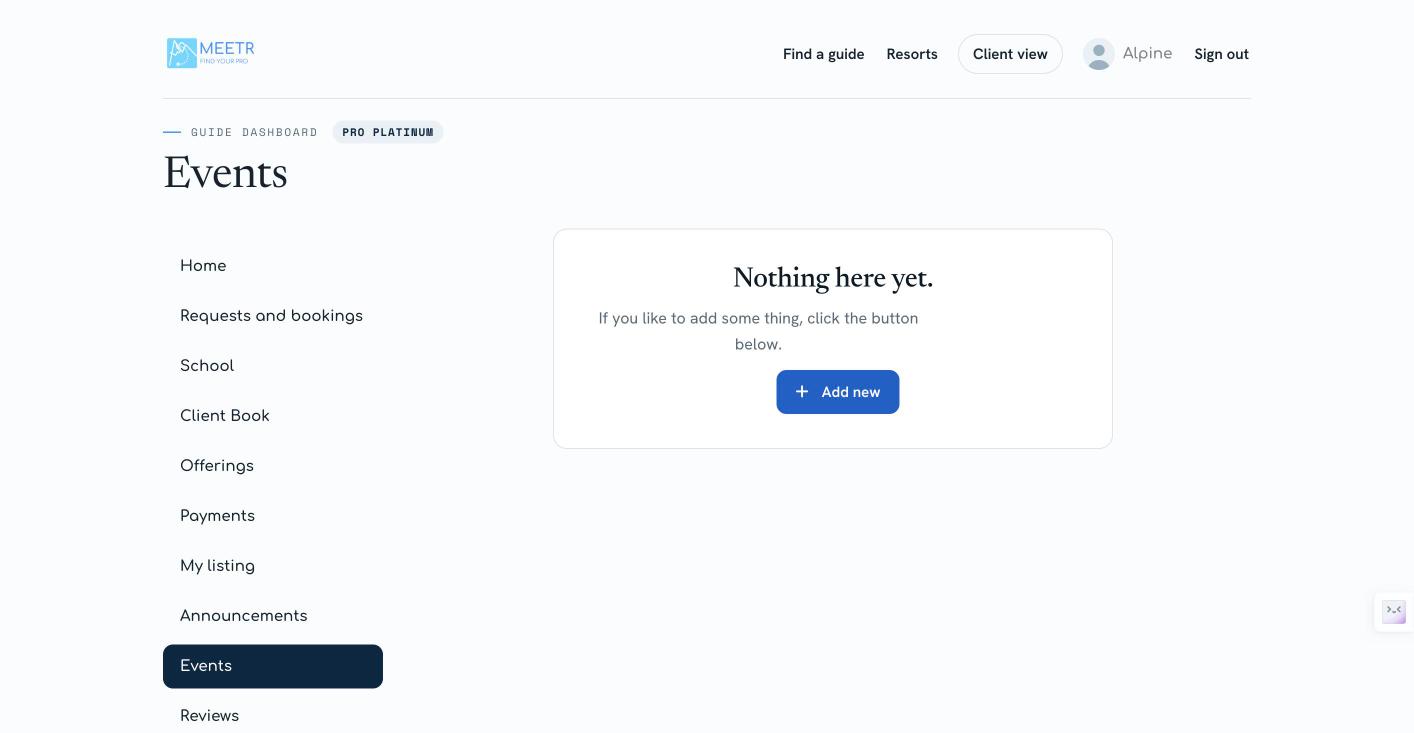
Events (Pro Plus and above). Use Events for anything on a set date that isn’t an everyday trip: a clinic, a camp, an avalanche course, a demo day. Open Events, select Add new, then add the title, location, start and end date, a description and a photo. Save, and the event shows on your profile.
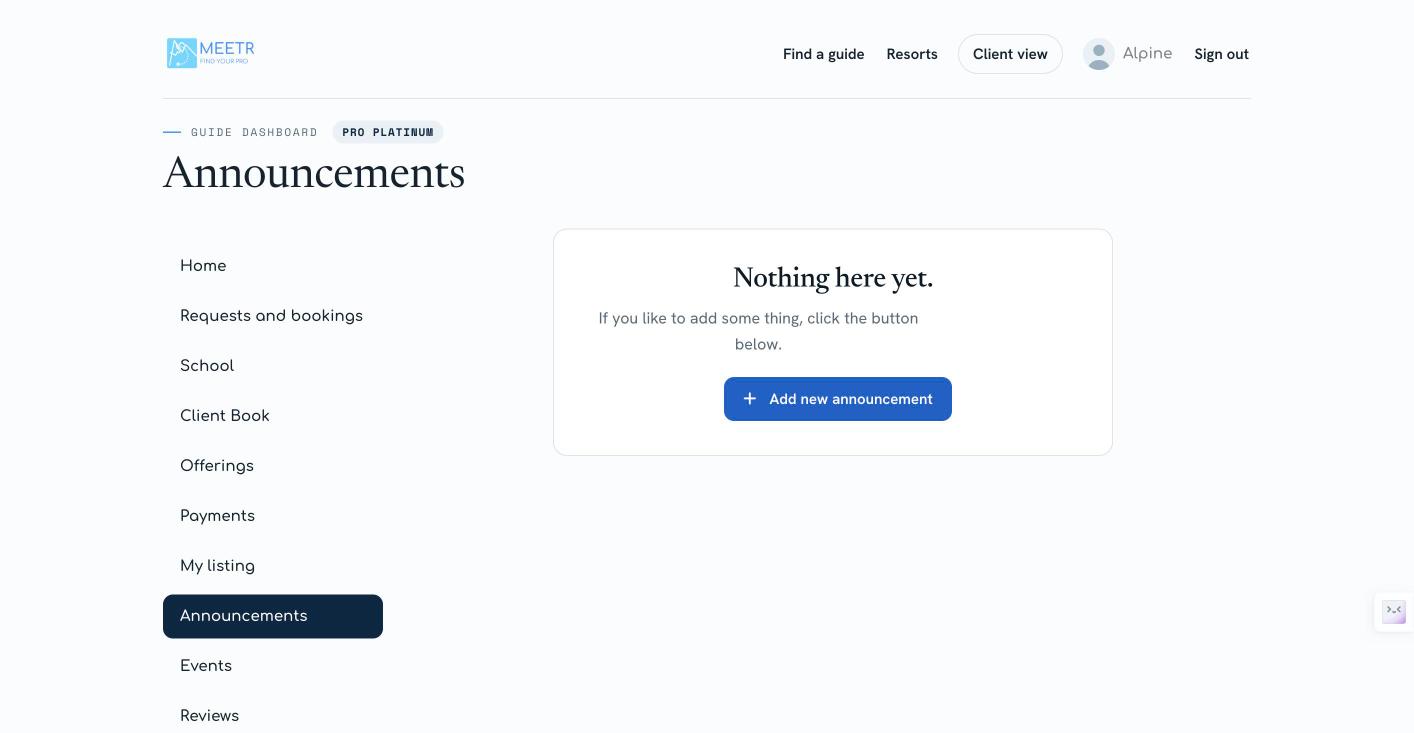
Announcements (Pro Plus and above). Post a short update on your profile: an opening next week, a new clinic, early-season pricing. Open Announcements and select Add new announcement.
Reviews and promotion
Reviews and your QR code. Clients can review you from their dashboard after a trip, and your reviews show under Reviews. For on-the-spot reviews, open My Review QR Code from your account menu and print it or keep it on your phone; clients scan it at the end of the day.
Promote your listing. Pay to appear higher in search and on resort pages for a set number of days. Open Promote, pick the listing, the placements and how many days, and check out.
Plan and billing
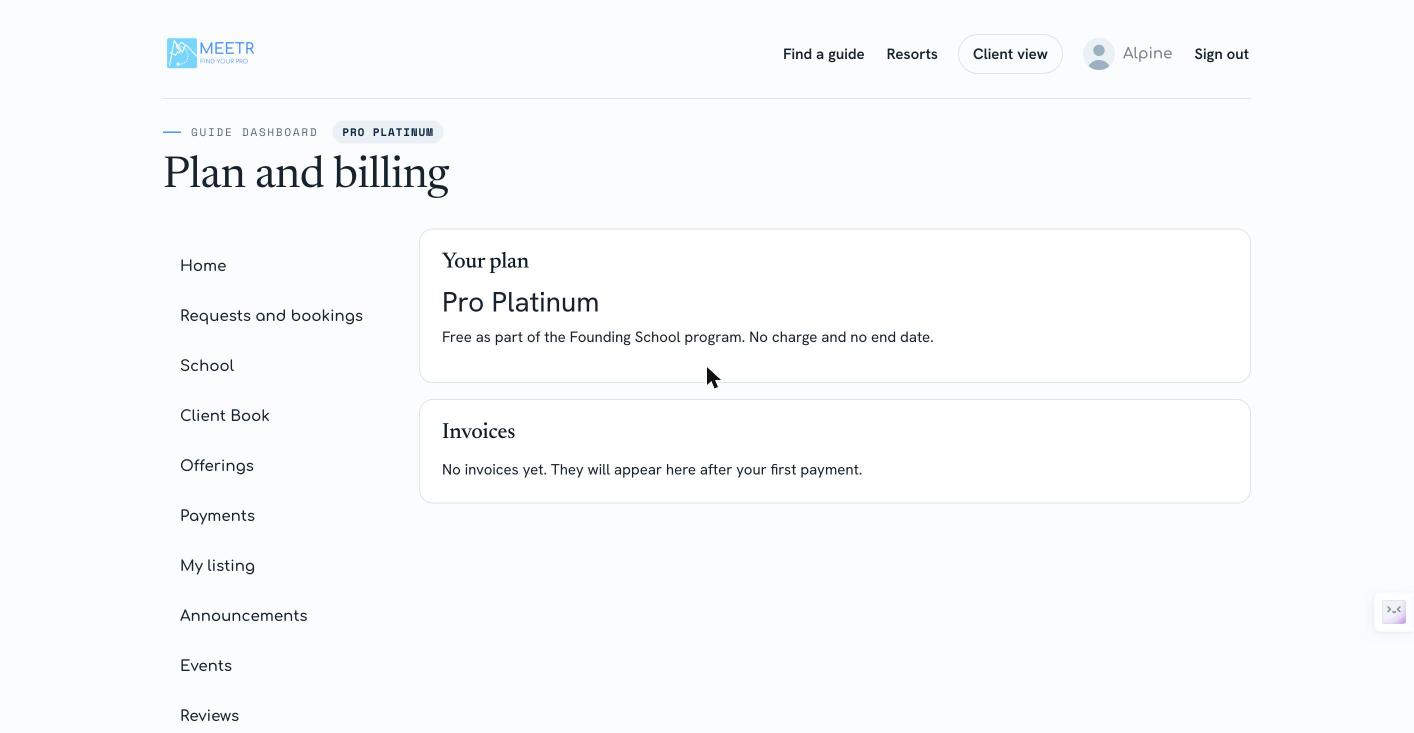
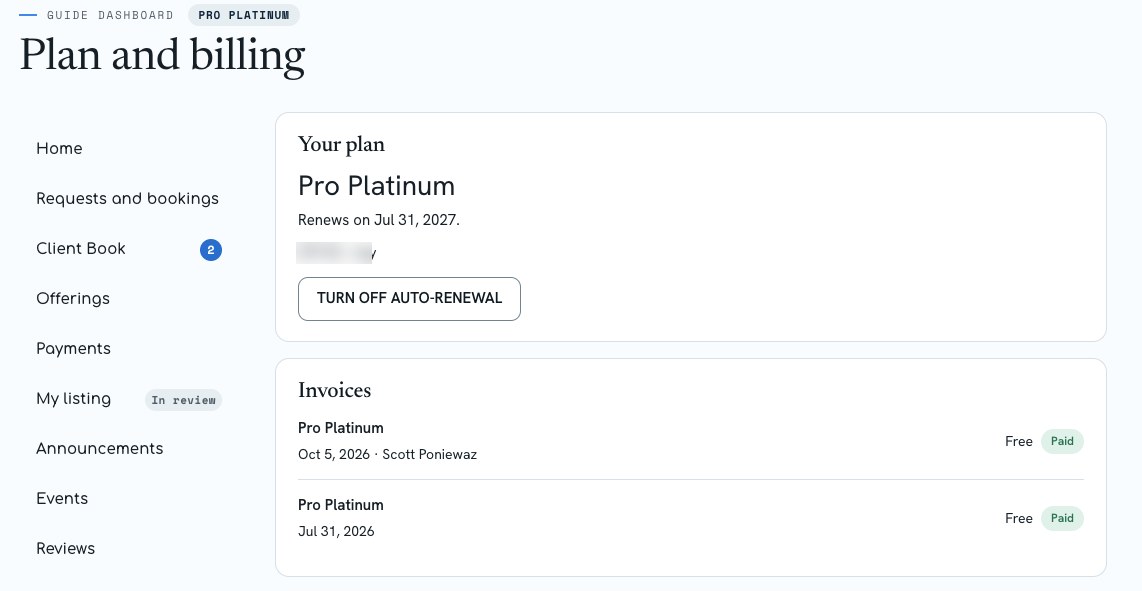
Open Plan and billing from your dashboard to see your plan, your renewal date and every invoice.
- Upgrade any time. Choose a higher plan and confirm. You are charged the full price of the new plan, and new features switch on as soon as payment goes through.
- Pay for a plan you picked. If your profile is on Free but you chose a paid plan, Plan and billing shows a Pay option with the price. Paying switches on your paid features.
- Complimentary profiles. Some profiles are complimentary and never renew. They show a note instead of a renewal date, for example “Free as part of the Founding School program. No charge and no end date.”
- Invoices are listed with their dates and amounts. If you have none yet, they appear after your first payment.
Still stuck?
Check Troubleshooting & FAQ or write to us. A real person reads every message.